Lucas Wiktorowicz | Emerging IT specialist
CCNA | Security+ | Network+ | A+ | MS-900

VM here, VM there, VM's everywhere
June 06, 2025
When preparing for certifications or simply when you want to try out a different operating system there’s no need to buy a new machine or set up a dual boot. This is a real game changer for learning IT. Thanks to VMs, I was able to better understand networking, explore Linux systems, experiment with Active Directory, and try out various cybersecurity tools. Here’s a short list of things I found useful when starting your VM adventure:
Resources
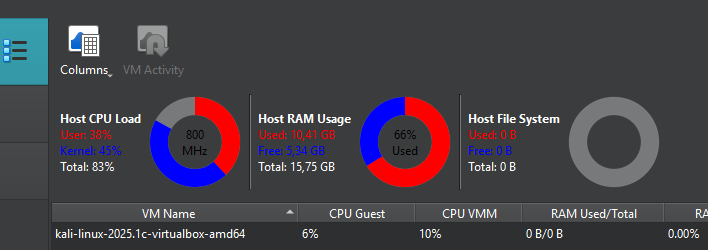
All you need is Oracle VirtualBox (freeware) and a machine with enough free RAM, storage, and CPU power to run your day-to-day OS. Running a VM might require about 2GB of RAM for Windows 10 or Linux, or around 4GB for Windows 11. As for CPU cores, assigning at least 2 should be sufficient, though allocating a bit more can help with performance. You can check your available resources in Oracle VirtualBox under Tools → Activities:
Installation or Pre-built VM
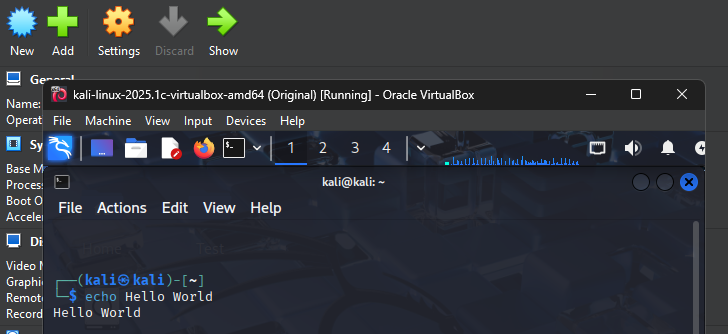
In some cases, you don’t even need to install an OS from scratch. If you trust a third party like the Kali Linux distributor you can download a pre-built VM file instead of an installation ISO. This speeds up the process of getting your first VM up and running. In other cases, however, this might serve as an attack vector, so it’s always safer to perform your own installation from the original OS image.
Snapshots
While experimenting with your VMs, many things can go wrong: a bad update, lost files, etc. That’s why it’s always a good idea to create a snapshot of your machine, which is a saved state in time. This way, if something goes wrong, you can easily revert back to a previous, stable state.
Network Adapter
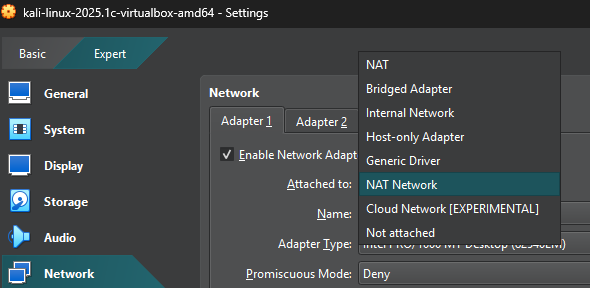
When configuring your VM, don’t just focus on resource allocation, the network settings are equally important. Here are the most useful options:
-
NAT (Network Address Translation): Provides Internet access with minimal setup.
-
NAT Network: Ideal for multiple VMs that need Internet access and internal communication. (Note: You need to create a NAT Network first; you can do this via Tools → Network → NAT → add new)
-
Internal Network: Sets up a private network strictly for inter-VM communication.
Malware Prison
One of the coolest aspects of using VMs is that they act like a high-security prison for malware. In the world of cybersecurity, you can let risky or untrusted software run inside a VM to see exactly what it does, all without putting your main system at risk. Think of it as a secure sandbox where malware is isolated, making it possible to study its behavior and even learn how to defend against it. And if something goes sideways, a quick snapshot restore brings your environment right back to its safe, pre-attack state. It’s a neat way to turn risky experiments into controlled learning opportunities.
Close or Suspend
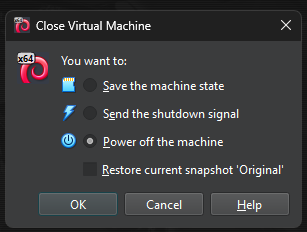
There comes a time when you have to sleep and so should your VM! You can either suspend it (saving the current machine state to disk, ready to be resumed later) or shut it down like a normal system to start it up again when you’re ready.
Fun
Above all, remember to have fun! Learning is most effective when you enjoy the process, and VMs are your playground. They provide a secure environment to experiment, make mistakes, and grow your skills without the risk of damaging your main system.
© 2026 Lucas Wiktorowicz. All rights reserved.